In today’s fast-paced digital era, streaming platforms have transformed how we experience entertainment. At Go3, we strive to make access to your favorite series, sports, and movies as effortless as possible – whether you’re watching from a smartphone, tablet, or the comfort of your living room. Watching Go3 on your TV is simple, flexible, and designed to suit your setup. Below, we’ll walk you through the main ways to enjoy Go3 on your television and outline the key technical requirements to ensure smooth streaming.
Watching Go3 on Your Smart TV
The easiest way to enjoy Go3 on your television is by using our dedicated Smart TV application. The Go3 app is available on most modern Smart TVs, including those made by Samsung, LG, Hisense, Philips, and Android TV-powered devices. Installing and activating the app takes only a few minutes and does not require any additional equipment; however, for quick login, you will need either a phone in your hand or a browser on your computer.
Step 1: Check Compatibility
Before downloading the Go3 app, ensure that your Smart TV meets the following criteria:
- Samsung Smart TV: Models manufactured from 2017 onwards, running Tizen OS 3.0 or later.
- LG Smart TV: Models from 2017 onwards with WebOS 3.4.0 or higher.
- Android TV: Devices running Android TV OS version 8.0 (Oreo) or late – version 7 (Nougat) or later.
- Hisense and Philips Smart TVs: Supported on newer models with certified operating systems and access to the respective app stores.
Older models may not support the Go3 app due to software limitations. In that case, using a streaming device (such as the Go3 Android TV Box or a compatible media player) is a convenient alternative.
Step 2: Download and Install the Go3 App
To install the app:
- Open your TV’s app store (e.g., Samsung Smart Hub, LG Content Store, or Google Play Store).
- Search for “Go3”.
- Download and install the app.
- Open the app and follow the on-screen prompts to log in or activate your device.
If you’re a new subscriber, you can register via our website before linking your account to the TV app. If you already have an account, simply log in using your existing credentials.
Step 3: Activate Your Device
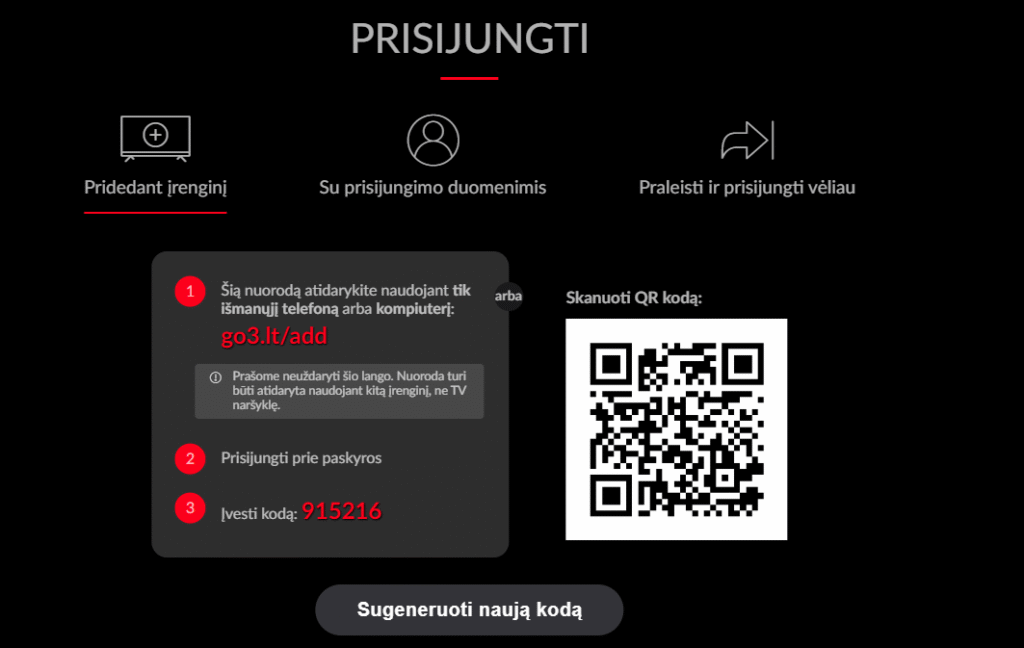
Once you launch the Go3 app, you’ll see an activation code on your TV screen. You can connect your TV in three different ways.
- Go to www.go3.lt/add on your browser, log in, and enter the code shown on your TV.
- Scan the QR code displayed on your TV screen using your smartphone – it will take you directly to the activation page.
- Log in manually by entering your Go3 account credentials directly on your TV.
Within seconds, your device will be successfully activated and ready to stream your favorite films, series, and live channels on Go3.
Using the Go3 Android TV Box
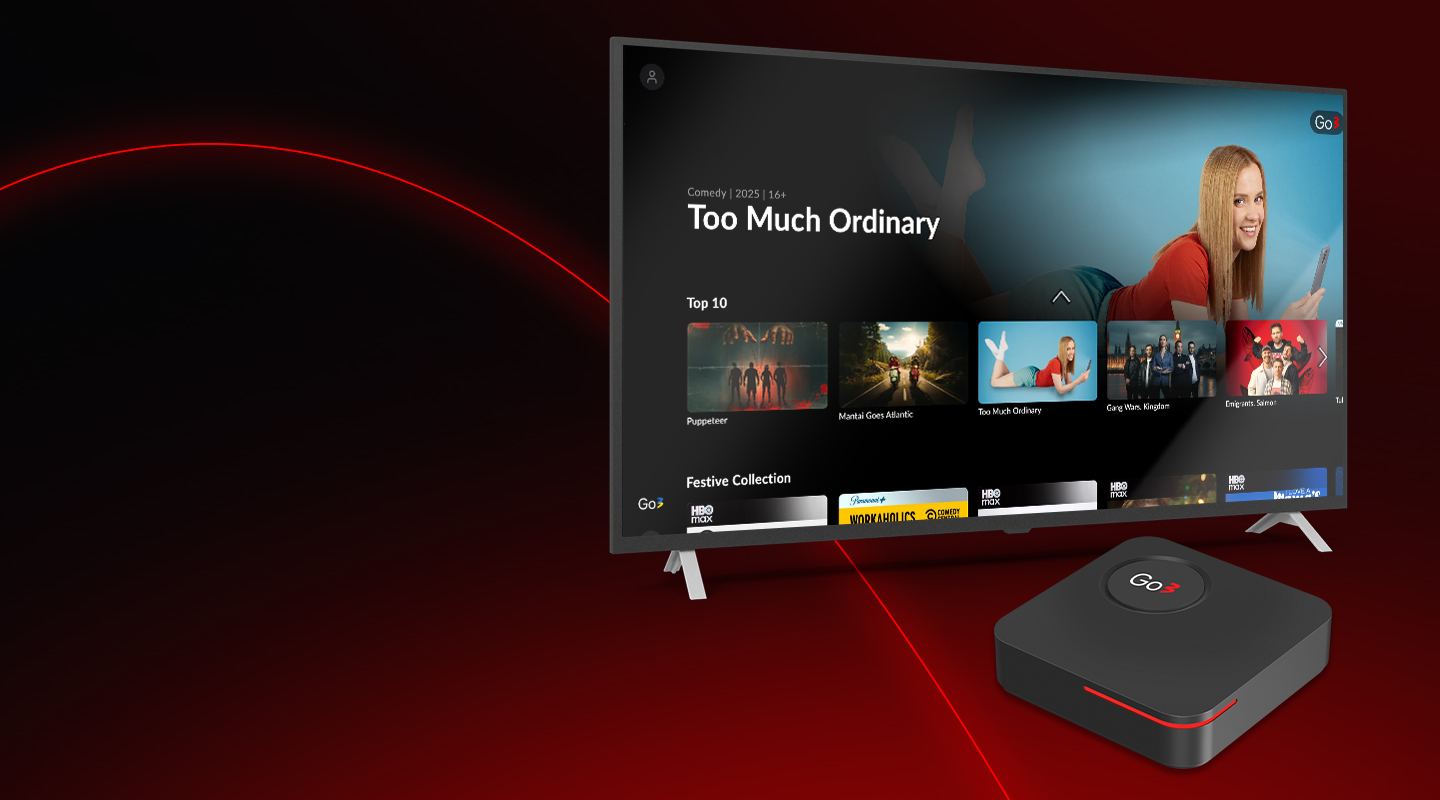
If your television does not have built-in app compatibility, or you prefer a dedicated streaming experience, the Go3 Android TV Box is an excellent choice. This device transforms any standard television with an HDMI port into a smart entertainment hub.
Easy Setup
- Connect the Go3 Android TV Box to your television using an HDMI cable.
- Power on the device and follow the simple on-screen setup instructions.
- Connect the device to the internet via Wi-Fi or an Ethernet cable.
- Sign in with your Go3 account or activate your device as described earlier.
The Go3 Android TV Box also gives you access to other streaming services, YouTube, and Google Play Store apps, making it a versatile addition to your home entertainment system.
Watching via Other Devices
If you don’t own a Smart TV or a Go3 TV Box, there are still convenient alternatives:
- Casting via AirPlay: Stream Go3 content effortlessly from your iPhone, iPad, or Mac to your TV using Apple AirPlay. Just open the Go3 app, start playing your favorite film or series, tap the AirPlay icon, and select your TV. Within seconds, your chosen content will appear on the big screen – no cables, no hassle, just smooth streaming.
- Smart TVs Compatibility: The Go3 app cannot be downloaded on smart TVs from manufacturers such as Philips, Apple TV, Sony, Hisense, and others – unless the device runs on the Android TV operating system. If your TV supports Android, simply install the Go3 app from Google Play and enjoy all your favorite films and series directly on the big screen.
- HDMI Connection: Connect your laptop or PC to your television using an HDMI cable and watch through a web browser.
Technical Requirements
For the best viewing experience, a few technical requirements should be met. These specifications ensure smooth playback, crisp picture quality, and uninterrupted streaming.
1. Internet Speed
- A connection speed of at least 6 Mb/s is recommended.
- HD content: At least 10 Mbps.
- 4K Ultra HD content: 25 Mbps or more.
We recommend a stable broadband or fiber-optic connection for optimal performance, especially when multiple devices are streaming simultaneously.
2. Supported Operating Systems
The Go3 app is compatible with major Smart TV operating systems including Android TV OS 8.0+, Tizen 3.0+, and webOS 3.5+. To ensure full functionality, keep your device firmware and the Go3 app updated to the latest version.
3. Display and Audio
Go3 supports HD (720p and 1080p) resolution, depending on your subscription plan and device capabilities.
4. Account and Subscription
To access Go3 content, you must have an active subscription and a registered account. Please note that each account has specific limits for logins and video sessions. You can be logged in on up to five devices at the same time (limit of 5), but you can stream on a maximum of two devices simultaneously (video session limit – 2). These limits apply to each account separately, so every user has their own login and streaming limits. To avoid connection issues, manage your active devices through your Go3 account settings and ensure you stay within these limits.
Troubleshooting Tips
If you experience playback issues, buffering, or difficulty logging in, try the following steps:
- Check your internet connection speed and stability.
- Restart your television or Go3 device.
- Ensure your device’s firmware and the Go3 app are up to date.
- Re-enter your activation code if necessary.
- If the issue persists, clear the app cache or reinstall the Go3 app.
For persistent issues, our Go3 Help Center provides comprehensive support and troubleshooting articles tailored to each device type. For more detailed information about the technical requirements of the Go3 service, please visit our official support page.
Enjoy Seamless Streaming with Go3
Whether you’re using a Smart TV, the Go3 Android TV Box, or another compatible device, getting started with Go3 is fast and easy. Once connected, you’ll have instant access to a wide variety of entertainment – from international blockbusters to local shows and live sports events. With reliable internet, a compatible TV, and just a few setup steps, your living room can transform into a personal cinema in minutes.
At Go3, we’re committed to delivering a seamless viewing experience that brings your favorite content closer to you. Simple to set up and built for the future of streaming, Go3 makes entertainment effortless, anytime and anywhere.
Experience next-level streaming with Go3 – your gateway to the best movies, series, and live sports. Enjoy top-quality entertainment on any screen, anytime. Sign up today and start watching instantly with a free trial.